Your link in bio works great online. But a lot of the time, people meet you offline: at a stall, a meetup, a college fest, a shop counter.
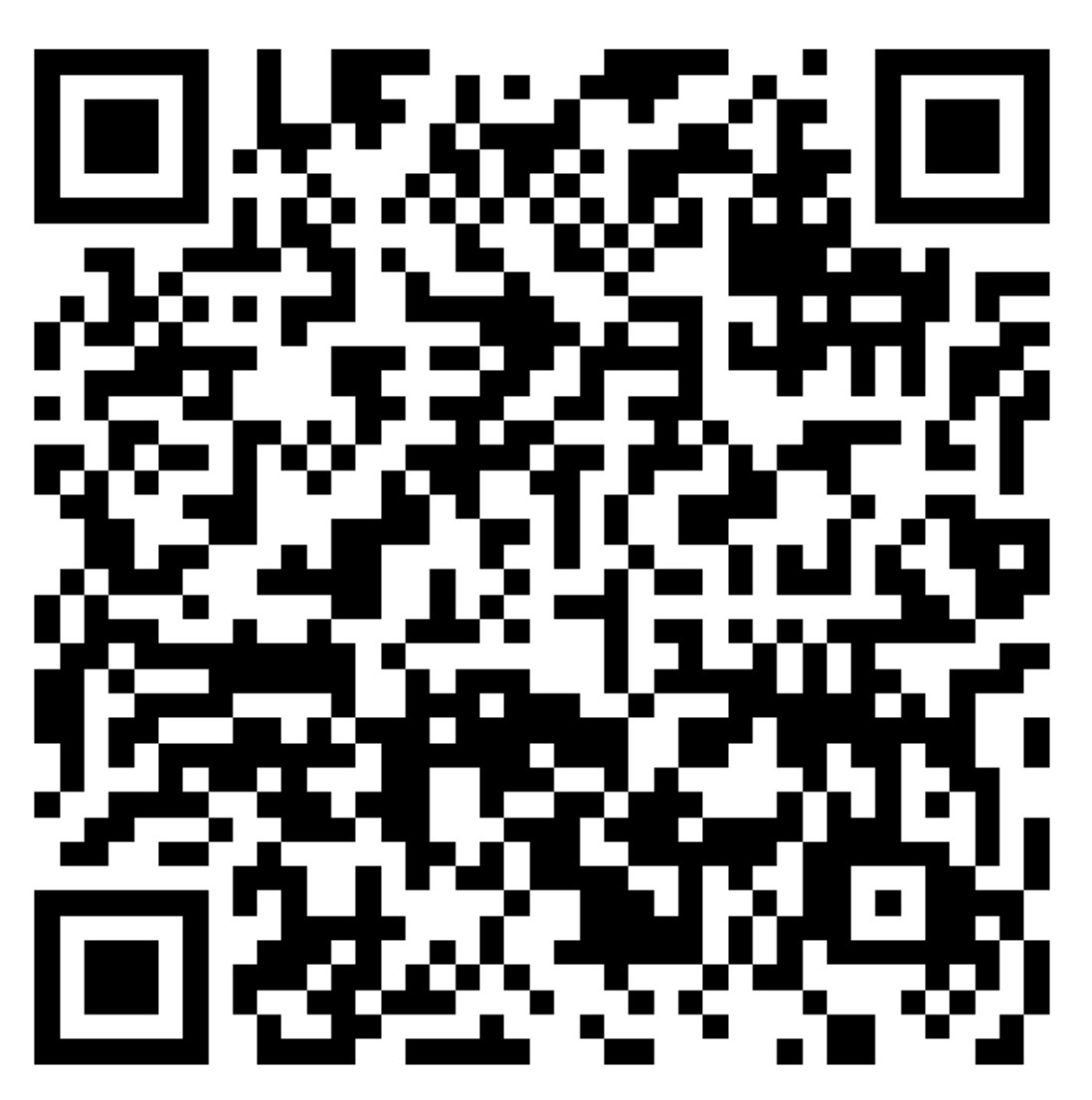
A QR code turns your link into something they can scan in two seconds. No typing, no spelling mistakes.
How it works
- Step 1Someone points their camera
- Step 2Phone recognises the code
- Step 3Your link page opens
- Step 4They tap what they need
LinkPre gives every page a QR code to share, even on the free plan.
Nine places to use it
- Business cards. Swap the long URL for a code.
- Resumes. A recruiter scans, sees your work.
- Shop counters or tables. "Scan to book, order or follow."
- Posters and flyers. Events, classes, launches.
- Packaging. A code on a box or bag leads to reviews or reorders.
- Email signatures. Handy when someone reads on a laptop.
- Slides. End a talk with a code on the last slide.
- Event badges and stalls. People remember scanning.
- Your car, window or storefront. Keep it large and simple.
Make people actually scan it
- Tell them why. "Scan to see my work" beats a lone square.
- Make it big enough. Roughly a thumbnail or larger, with a quiet border.
- Keep contrast high. Dark code, light background.
- Test it on two different phones before you print.
- Point it at a phone-friendly page. Yours should be.
Questions people ask
How do I get a QR code for my link in bio?
LinkPre creates a QR code for your page that you can download and share.
Is the QR code free?
Yes, the QR code is part of LinkPre's free plan.
Where should I put it?
Business cards, resumes, posters, packaging, shop counters and slides.
What size should it be?
Large enough to scan easily, roughly the size of a thumbnail or bigger, with clear space around it.
Get your QR code and page in minutes.
Create my linkDetails about other products come from their public pages and third-party reviews and can change. Check each provider's site for current pricing before you decide.